> ## Documentation Index
> Fetch the complete documentation index at: https://docs.daftplug.com/llms.txt
> Use this file to discover all available pages before exploring further.
# Introduction
> What Lightify does to make pages load faster, and how it is organized.
Lightify makes WordPress pages arrive faster. It caches finished pages so the server stops rebuilding them, trims the CSS, JavaScript, images, and HTML that the browser has to download, and loads the next page before the visitor asks for it.
Then it measures whether any of that worked, using real timings from real visitors rather than a synthetic test.
 ## The four things it does
A finished page is written to disk and served directly, so PHP and the database are skipped entirely on the next visit.
Minifies HTML, CSS, and JavaScript, removes CSS the page never uses, defers and delays scripts, and self-hosts external files.
Converts images to WebP, lazy-loads what is below the fold, preloads the one image that is not, and replaces YouTube embeds with a thumbnail.
Prefetches links the visitor is about to click, so the next page is already there.
## How caching works here
The page cache has three serving levels, and which one you get depends on your server rather than your settings.
`.htaccess` rules serve the cached file before WordPress loads at all. Fastest, because no PHP runs.
An `advanced-cache.php` drop-in serves the cached file very early in WordPress, before plugins and the theme load.
WordPress loads normally and Lightify serves the cached HTML from a buffer.
Every level serves the same file. The difference is how much work happens before it does.
## Measuring the result
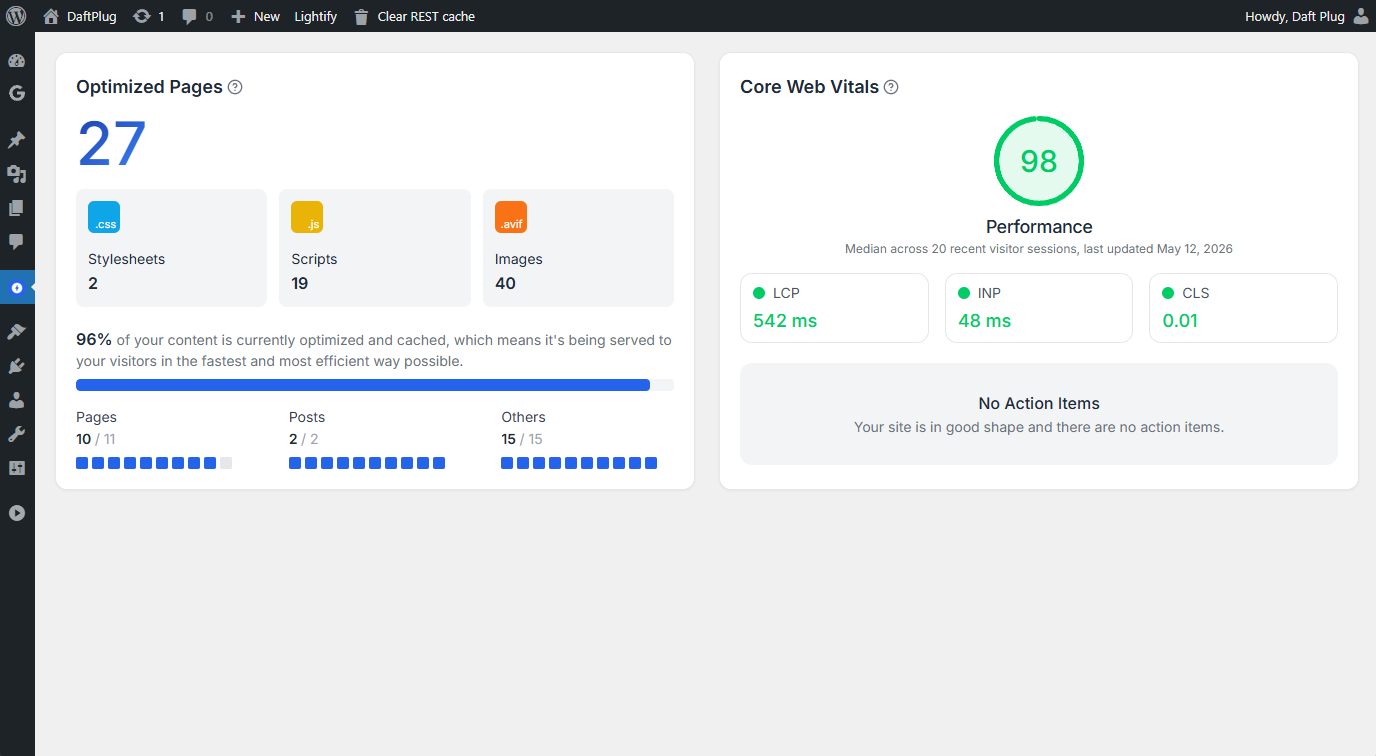
The overview page reports a **performance score** built from timings collected from your actual visitors on your cached homepage, weighted the way Lighthouse weights them.
| Metric | Weight | Good | Poor |
| ------------------------------- | ------ | ----------- | ---------- |
| INP, interaction responsiveness | 30% | Under 200ms | Over 500ms |
| LCP, largest contentful paint | 25% | Under 2.5s | Over 4s |
| CLS, cumulative layout shift | 25% | Under 0.1 | Over 0.25 |
| FCP, first contentful paint | 10% | Under 1.8s | Over 3s |
| TTFB, time to first byte | 10% | Under 800ms | Over 1.8s |
These are field measurements, not a lab test. The collector is injected only into the cached copy of your homepage, so the first uncached visitor is never measured and the numbers reflect what people actually experienced. That also means the score needs traffic before it means anything.
## How the plugin is organized
Lightify adds a top-level **Lightify** menu with two pages.
Performance score, Core Web Vitals over time, and which pages and assets have been optimized.
Six tabs: Cache, Asset Optimizations, Media Optimizations, Network Improvements, Bloat Removal, and Notifications.
Purging and preloading are also available from the admin bar on any page, which is where you will use them most.
Performance settings break things. Removing unused CSS, delaying JavaScript, and lazy rendering all change what the browser receives, and some themes and plugins do not survive it. Turn features on one at a time and look at your site after each, rather than enabling everything and working backwards.
Requirements, installation, and license activation.
## The four things it does
A finished page is written to disk and served directly, so PHP and the database are skipped entirely on the next visit.
Minifies HTML, CSS, and JavaScript, removes CSS the page never uses, defers and delays scripts, and self-hosts external files.
Converts images to WebP, lazy-loads what is below the fold, preloads the one image that is not, and replaces YouTube embeds with a thumbnail.
Prefetches links the visitor is about to click, so the next page is already there.
## How caching works here
The page cache has three serving levels, and which one you get depends on your server rather than your settings.
`.htaccess` rules serve the cached file before WordPress loads at all. Fastest, because no PHP runs.
An `advanced-cache.php` drop-in serves the cached file very early in WordPress, before plugins and the theme load.
WordPress loads normally and Lightify serves the cached HTML from a buffer.
Every level serves the same file. The difference is how much work happens before it does.
## Measuring the result
The overview page reports a **performance score** built from timings collected from your actual visitors on your cached homepage, weighted the way Lighthouse weights them.
| Metric | Weight | Good | Poor |
| ------------------------------- | ------ | ----------- | ---------- |
| INP, interaction responsiveness | 30% | Under 200ms | Over 500ms |
| LCP, largest contentful paint | 25% | Under 2.5s | Over 4s |
| CLS, cumulative layout shift | 25% | Under 0.1 | Over 0.25 |
| FCP, first contentful paint | 10% | Under 1.8s | Over 3s |
| TTFB, time to first byte | 10% | Under 800ms | Over 1.8s |
These are field measurements, not a lab test. The collector is injected only into the cached copy of your homepage, so the first uncached visitor is never measured and the numbers reflect what people actually experienced. That also means the score needs traffic before it means anything.
## How the plugin is organized
Lightify adds a top-level **Lightify** menu with two pages.
Performance score, Core Web Vitals over time, and which pages and assets have been optimized.
Six tabs: Cache, Asset Optimizations, Media Optimizations, Network Improvements, Bloat Removal, and Notifications.
Purging and preloading are also available from the admin bar on any page, which is where you will use them most.
Performance settings break things. Removing unused CSS, delaying JavaScript, and lazy rendering all change what the browser receives, and some themes and plugins do not survive it. Turn features on one at a time and look at your site after each, rather than enabling everything and working backwards.
Requirements, installation, and license activation.