> ## Documentation Index
> Fetch the complete documentation index at: https://docs.daftplug.com/llms.txt
> Use this file to discover all available pages before exploring further.
# Introduction
> What Progressify adds to WordPress and how the plugin is organized.
Progressify turns a WordPress site into a Progressive Web App. Visitors can install your site to their home screen, keep browsing when the connection drops, and receive push notifications, without you building or publishing a separate mobile app.
The plugin generates the two files a browser needs to treat a website as an app, a [web app manifest](/progressify/settings/web-app-manifest) and a [service worker](/progressify/settings/offline-usage), then layers install prompts, offline behavior, app-like interface components, and push notifications on top of them.
## What a PWA gives your visitors
Your site gets an icon on the home screen or desktop and opens in its own window without browser chrome.
Pages the visitor already saw stay readable without a connection, and a fallback page covers the rest.
Push notifications reach subscribers even when your site is closed.
Tab bars, pull-to-refresh, dark mode, page transitions, and haptic feedback behave the way native apps do.
## How the plugin is organized
Progressify adds a top-level **Progressify** menu in WordPress with two pages.
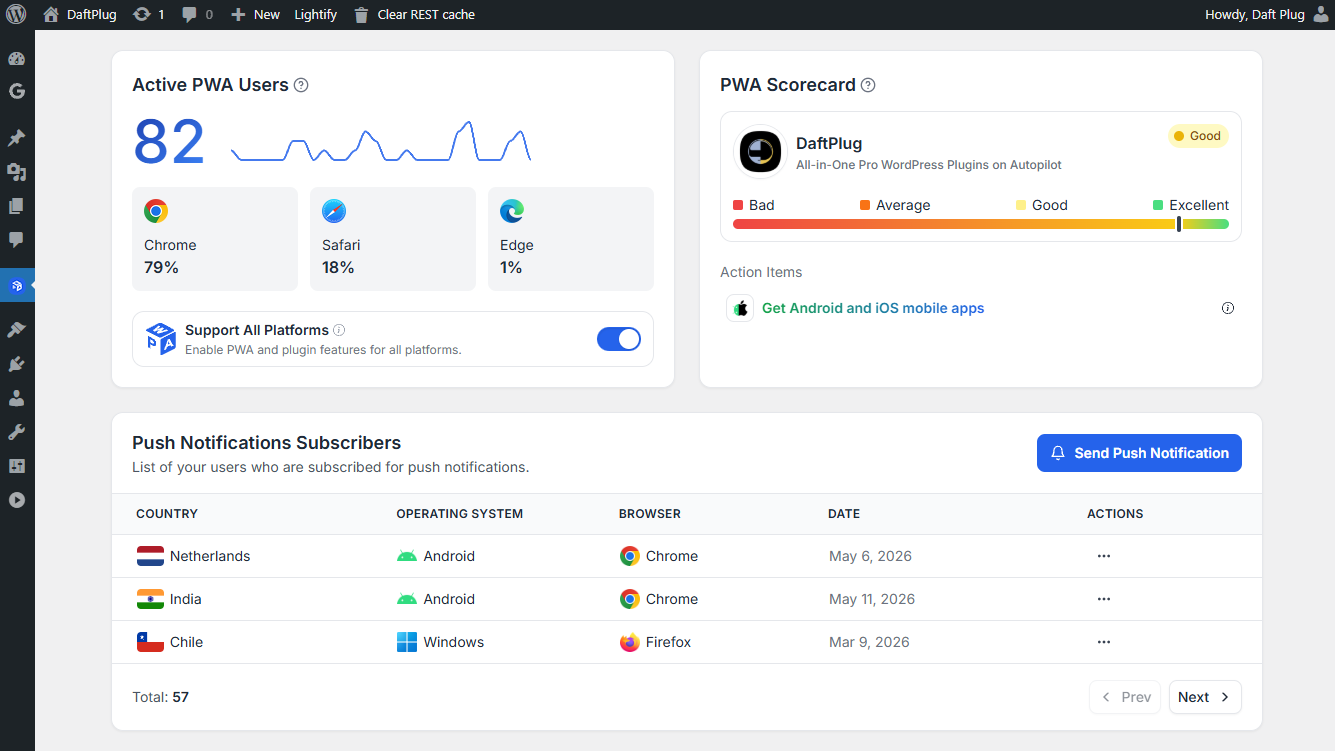 Install and usage analytics, the PWA scorecard that tells you what is still missing, your push subscriber list, and the form for sending a notification.
Seven tabs, each covering one area of the PWA. Every tab is documented in this section.
The settings tabs map one to one onto the pages below.
Which platforms the plugin applies to.
App name, icon, display mode, colors, shortcuts.
Prompts, install page, button, URL, and QR code.
Caching strategy, fallback page, offline forms.
Tab bar, dark mode, refresh gestures, loaders.
Page transitions, file and share handlers, background sync.
Subscription controls, automations, delivery settings.
Exactly which settings each version unlocks.
## Before you start
Progressify needs HTTPS. Browsers only register a service worker on a secure origin, so install prompts, offline caching, and push notifications will not work over plain HTTP. `localhost` is exempt, which is why the plugin behaves differently on a local development site than on a staging domain.
Requirements, installation, and activation.
Install and usage analytics, the PWA scorecard that tells you what is still missing, your push subscriber list, and the form for sending a notification.
Seven tabs, each covering one area of the PWA. Every tab is documented in this section.
The settings tabs map one to one onto the pages below.
Which platforms the plugin applies to.
App name, icon, display mode, colors, shortcuts.
Prompts, install page, button, URL, and QR code.
Caching strategy, fallback page, offline forms.
Tab bar, dark mode, refresh gestures, loaders.
Page transitions, file and share handlers, background sync.
Subscription controls, automations, delivery settings.
Exactly which settings each version unlocks.
## Before you start
Progressify needs HTTPS. Browsers only register a service worker on a secure origin, so install prompts, offline caching, and push notifications will not work over plain HTTP. `localhost` is exempt, which is why the plugin behaves differently on a local development site than on a staging domain.
Requirements, installation, and activation.