
 Progressify
 Generatify
 Lightify
 Crownify
 Snapshotify
.zip file you downloaded from the email we sent you.
1
Deploy the assetlinks.json file
Your zip file contains assetlinks.json. This is a digital asset links file that proves ownership of your PWA.To properly deploy this file, upload it to your server at
https://your-domain.com/.well-known/assetlinks.json.2
Upload your app to the Google Play Store
Next, you’ll upload your app package to the Google Play Console:
- Log into the Google Play console with your developer account.
- You can follow the guidelines on the Google play console to create your app.
- Your zip file contains an .aab (Android App Bundle) file which can be submitted directly to the Play Store through the Google Play Console.
3
Update your asset links file for production
This step is required for running the production version of your app. If you skip this step, your app will crash or a browser address bar will appear inside your app.
- Once you’ve uploaded your .aab file, Google Play re-signs your app. Because of this, you’ll need to update your asset links file.
-
Go to the Google Play Console and select your app release:
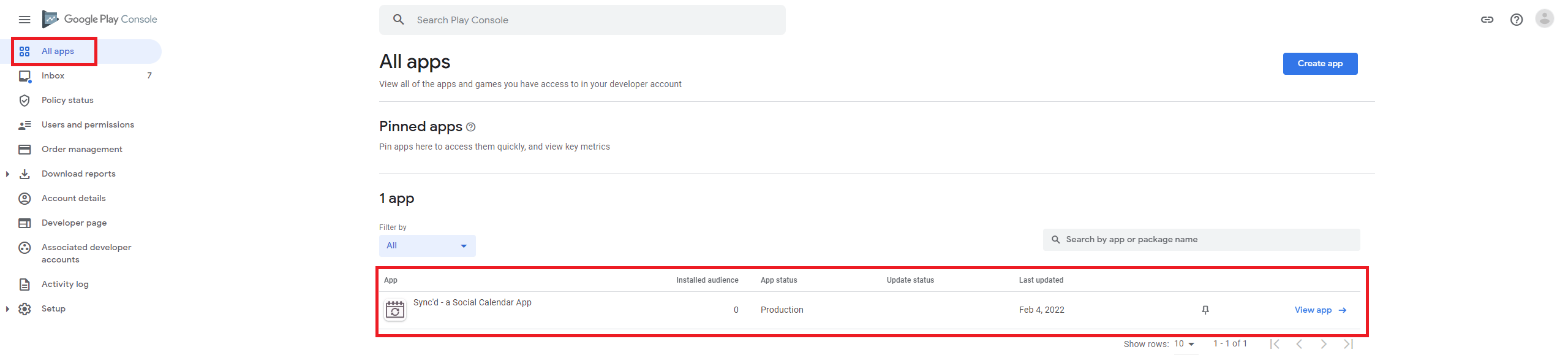
-
Click
Setupand thenApp integrityin the sidebar. Navigate to theApp signingtab and copy your SHA-256 fingerprint: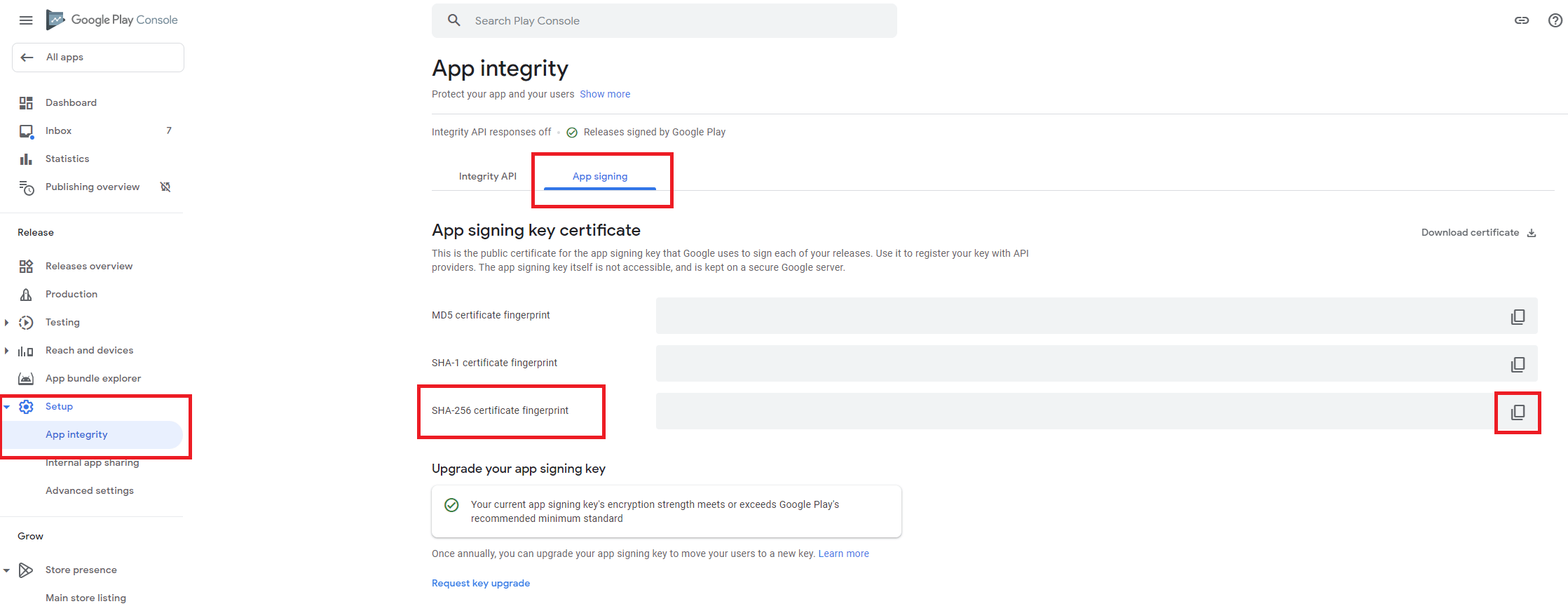
-
Then, paste the fingerprint into your assetlinks.json file:
assetlinks.json
- Once your updated assetlinks.json file is deployed to your server, the address bar will disappear from your app.
4
Save your signing key
Your zip file contains
signing.keystore and signing-key-info.txt. signing.keystore is the Android key store file containing the signing key. signing-key-info.txt is a text file containing your signing key information, such as the key password, store password, and key alias. You will probably never need to update your app in Google Play Store but keep both of these files in a safe place in case you’ll need to deploy future versions of your app.