
 Progressify
 Generatify
 Lightify
 Crownify
 Snapshotify
Building Your App
Before you can start the submission process, you’ll need to build the Swift project that will load your PWA: The whole process can be done in just a few steps:- Unzip the folder you downloaded from the email we sent you.
-
Open a terminal in the
srcdirectory. -
Run this command:
pod installIf you get an error runningpod install, try runningbrew install cocoapods. (If you need to install Homebrew, click here) -
Open the
.xcworkspacefile in your src directory. -
Click
Product>Buildin Xcode to build your project. - With the project opened in Xcode, click ▶️ to test your PWA in an iPhone simulator. You may also choose other iOS simulators to try out your app on those devices.
Adjusting Capabilities
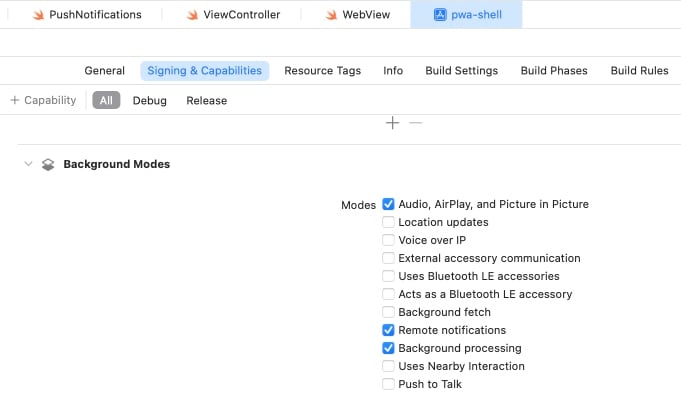
Under xcodeSigning & Capabilities tab, check and disable all capabilities your app doesn’t need. Use only those that are actually involved in your application. This is important for passing publishing verification.
Publishing
The next portion of getting your PWA in the App Store is the most complicated, and may take some time to work through, but we’ll go through each step in more detail.1
Sign into your Apple Developer account
To submit your app to the iOS App Store, sign-in to your Apple Developer Account. If you don’t have an Apple Developer account, enroll here Enrollment costs $99 USD/year, though non-profits can have this fee waived.
2
Create a Bundle ID
Next, you will need to create a Bundle ID on your Apple Developer Account that matches the Bundle ID associated with your package.
-
Navigate to your Apple Developer account page and select
Certificates, Identifiers & Profiles -
Select
Identifiersand click the+symbol to add a new identifier.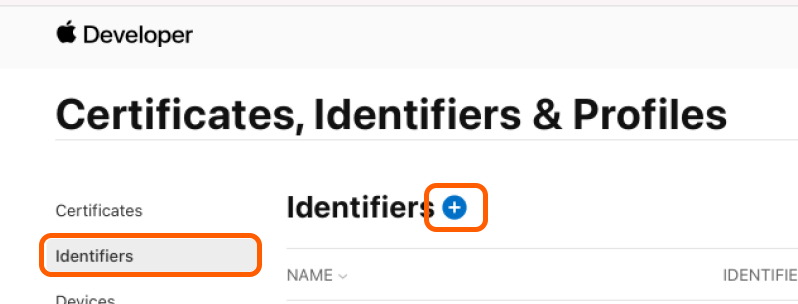
-
Select
App IDsand then chooseAppas the type. -
Add any
Descriptionthat you see fit. -
Add your Bundle ID.
Important: This must match the bundle ID of your package. -
In the capabilities section, enable
Associated DomainsandPush Notifications. -
Click
Continueand thenRegisterto finish adding the identifier.
If you didn’t take note of your Bundle ID, you can find it in the
project.pbxproj file.3
Create a Certificate Signing Request (CSR)
Next, you will need to use the Keychain Access application to create a Certificate Signing Request:
- Launch the
Keychain Accessapp. - From the top menu bar, choose:
Keychain Access > Certificate Assistant > Request a Certificate from a Certificate Authority. - Enter your email address and your name. You may leave
CA Email Addressempty. - Choose the
Saved to diskoption and selectContinue. - You’ll be prompted to save a
.certSigningRequestfile to disk.
4
Create a Certificate
Now, you will use the CSR we created in the last step to create a certificate:
- Navigate back to the
Certificates, Identifiers, & Profilessection on your Apple Developer account page. - Select
Certificatesand select the+symbol to add a new certificate. - Select
Apple Distributionand clickContinue. - You will be prompted to upload a Certificate Signing Request. Choose the file you created in the previous step, and click
Continue. - On the final screen, Choose
Downloadto save your.cerfile to your disk.
5
Install the Certificate
Now you just need to install the certificate you downloaded:
-
Open the
Keychain Accessapp. -
Make sure you are in the
loginsection on the left navigation bar. -
Drag your downloaded
.cerfile onto the list of certificates.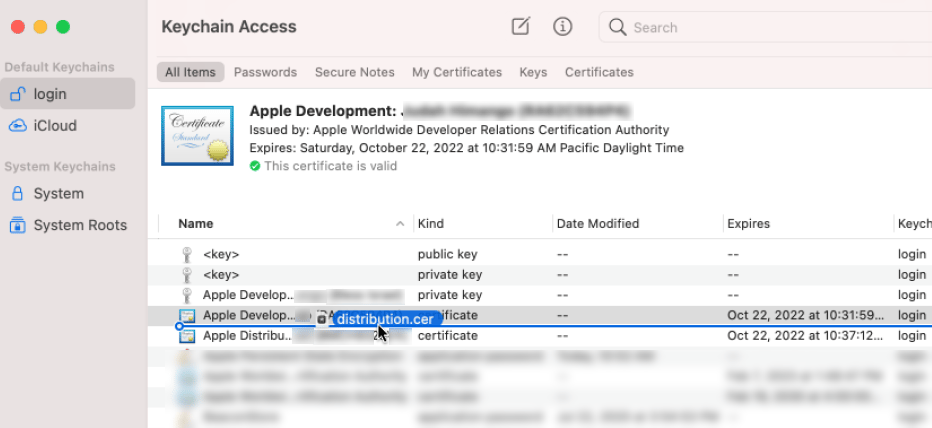
6
Create a Provisioning Profile
Next, you can use the certificate you created to create a Provisioning Profile:
- Navigate back to the
Certificates, Identifiers, & Profilessection on your Apple Developer account page. - Select
Profilesand select the+symbol to add a new profile. - On the next page, select
App StoreunderDistributionand clickContinue. - You will be prompted to select an app ID, choose the Bundle ID you created in Step 2 and click
Continue. - Next, you will be prompted to choose a certificate. Select the certificate you created in the last step and click
Continue. - You’ll be asked for a Provisioning Profile Name. Use your Bundle ID and then click
Generate. - Finally, select
Downloadto download your.mobileprovisionfile.
7
Create Your App Reservation
Once you have a provisioning profile, you can create an app reservation on your developer account.
- Go back to your Apple Developer account page and choose
App Store Connect. - Select
My Apps. - Select the
+symbol and then clickNew App. - You will be prompted for details about your app:
- Choose
iOSfor the platform. - Use any name you would like.
- Select a language.
- Select the Bundle ID we created in the previous step.
- SKU can be any string you would like.
- Select
Full Accessunder User Access.
- Choose
- Finally, click
Createto complete your app reservation.
8
Upload Your App Package
After you create your app reservation, you’ll be redirected to the app details page. There, you can add metadata about your app, including screenshots, description, and more.After you’ve filled out any data you want to include with your app, it’s time to upload your PWA app package.First, you’ll need to sign in to Xcode:
- Click
Xcodein the top menu bar. - Click
Preferences. - Navigate to the
Accountspanel. - If you don’t see your Apple Developer account already, click the
+symbol in the bottom left. - Sign in to your account.
-
Select the
Project Navigatortab. - Select your application.
-
Select
Build Settings.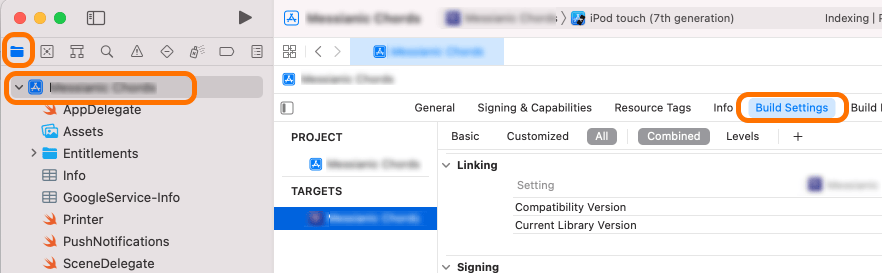
-
Scroll down to the
Signingsection. -
Under
Code Signing Identity, setReleasetoApple Distribution. -
Under
Code Signing Style, setReleasetoManual. -
Under
Development Team, setReleaseto your Apple Developer account team. -
On the same project page, select
Signing & Capabilitiesand thenRelease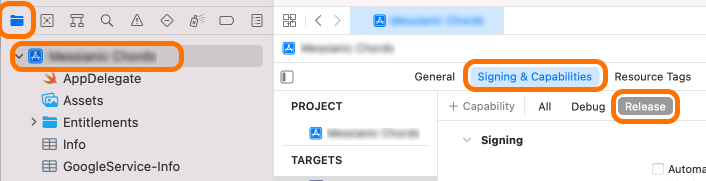
-
Under
Provisioning Profile, selectDownload Profile - Choose the profile you created in the previous steps.
-
At the top of Xcode, select your iPhone simulator name and select
Any iOS Device (arm64).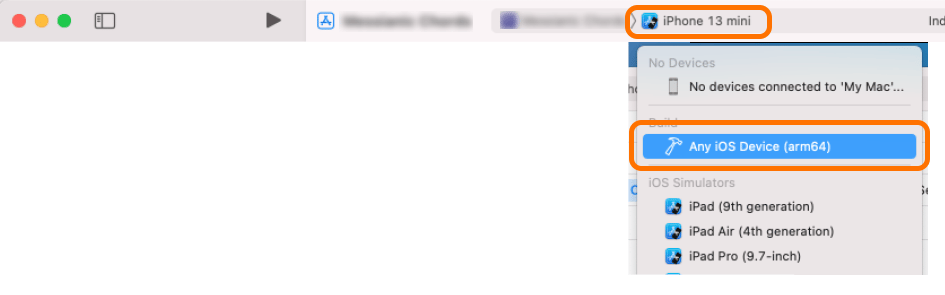
-
Next, select
Product > Archivefrom the Mac OS top menu bar. -
When the archive process finishes, select
Distribute App > App Store Connect > Upload. - Follow the prompts to upload your application!
9
Submit for Review
The last thing you need to do is submit your app for review:
- Go to your apps list at the App Store Connect.
- Scroll to the
Buildsection. - Click
Select a build before you submit your app. - Choose the archive you just created.
- Once you’ve set and reviewed the metadata for your app, hit
Submit for Reviewto complete your submission.